ENVI Home Install Guide – huxley.itsupport@wwu.edu
What
you will need:
·
Approximately
25-30 minutes
·
A
steady internet connection
·
A
license code (to be provided by your professor or instructor)
To begin:
·
A
VPN connection is needed in order to access the
network drive that contains the installation files. For a guide, please follow
the attached link for the VPN found on Huxley’s website:
https://huxley.wwu.edu/files/Appendix%20D%20-%20Huxley%20Remote%20Access%20Instructions.pdf
·
Once
the VPN client has been installed and you are connected to it, we can begin to
install the software.
·
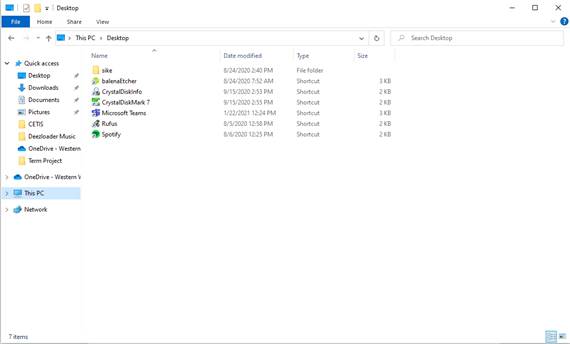
Navigate
to File Explorer on your Windows machine.
·
In
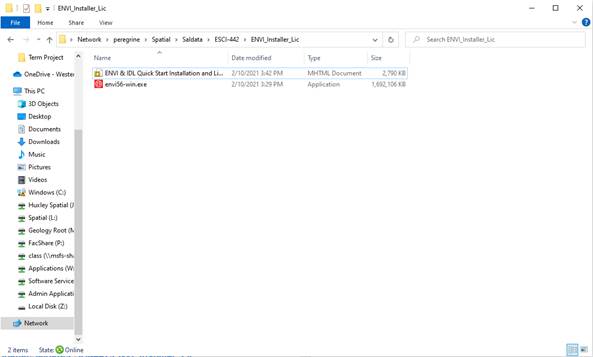
the top address bar (This PC > Desktop, as seen above), type or copy \\peregrine.univ.dir.wwu.edu\Spatial\Saldata\ESCI-442\ENVI_Installer_Lic
·
You
should see a file named “envi56-win.exe”. COPY this file somewhere on your personal computer. DO NOT attempt to
install this file over the network, it can and will cause issues during the
install.
·
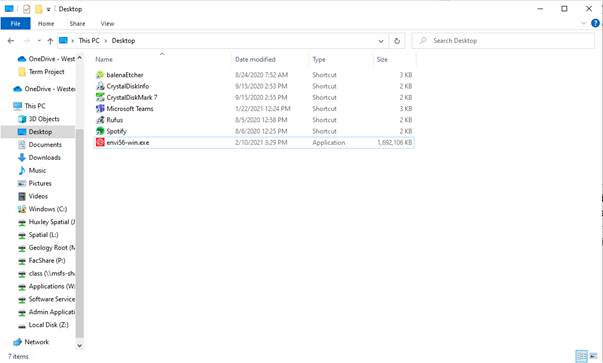
You can now launch the file you downloaded to
your machine. Any location will work, as long as it is
on your computer, (e.g. This PC > Desktop).
·
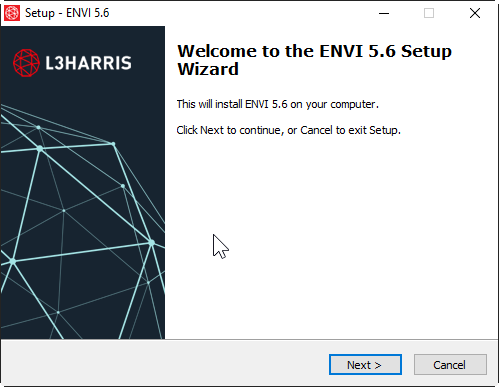
After launching the installer, in the windows
that appears, click “Next”.
·
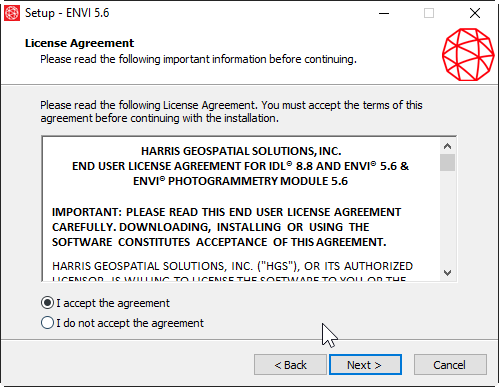
Accept
the license agreement by checking “I accept the agreement” and clicking “Next”.
·
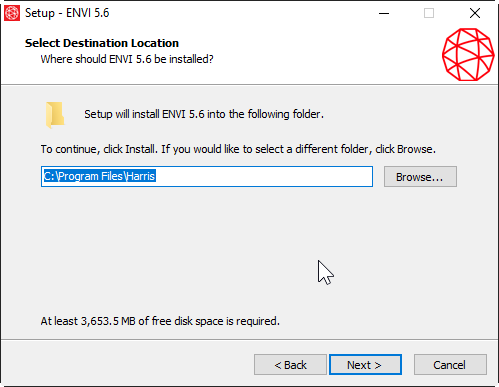
Select
“Next” to accept the default install location.
·
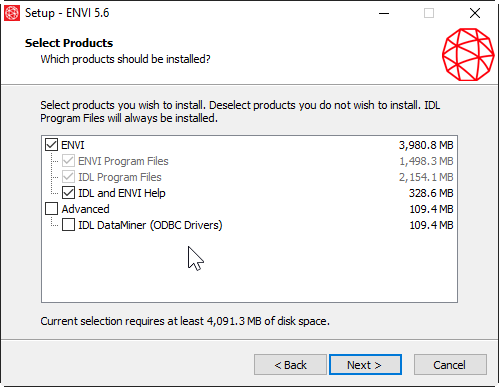
The
default options listed below should be sufficient for a regular install, click
“Next”.
·
Click
“Install”, otherwise click “Back” to change options before proceeding.

·
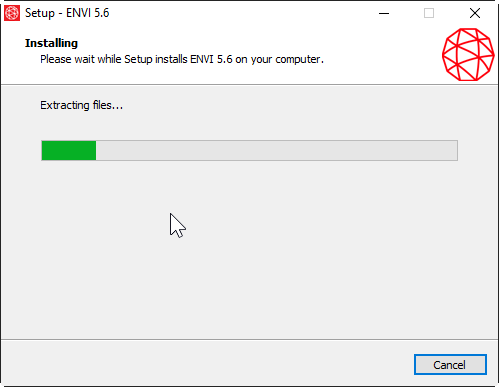
Let
the program install.
·
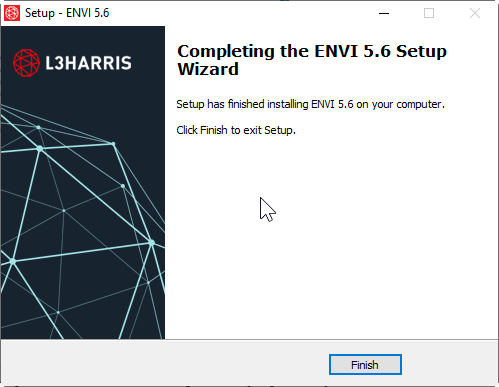
Click
“Finish” to exit the installation setup.
·
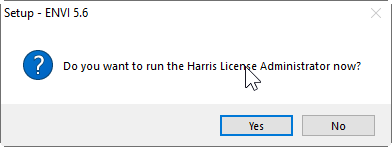
Click
“Yes” to run the Harris License Administrator.
·
Below
is the license activation code to use for the next steps.
DO NOT SHARE
YOUR ACTIVATION CODE WITH ANYONE OUTSIDE OF YOUR ESCI 442/552 CLASS.

Please
note that this software expires and will therefore stop working on June 30,
2021.
·
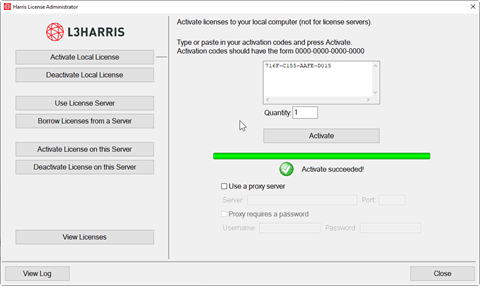
In
the License Administrator, click “Activate Local License” on the left, and
enter your license code in the box shown. Afterwards, click “Activate”, and if
all goes well, you will see the message “Activate succeeded!”.
·
After activating your license, please disconnect from the VPN service.
----------------------------------------------------------------------------------------------------------------
·
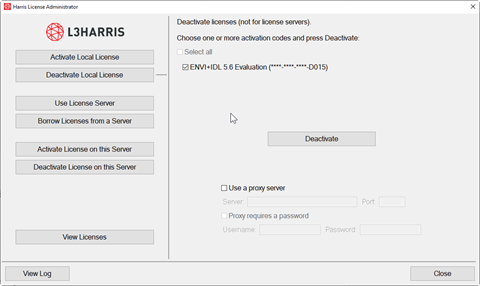
At
the conclusion of Spring quarter and you are done using the software, in the
Harris License Administrator, click on “Deactivate Local License” on the left,
select your license from the list, and click on “Deactivate”. If all goes well,
you will see the message “Successfully deactivated!”.

After
6/30/21 the software will no longer be licensed and will not work. So please uninstall
ENVI/IDL from your computer, otherwise it’s just occupying space.